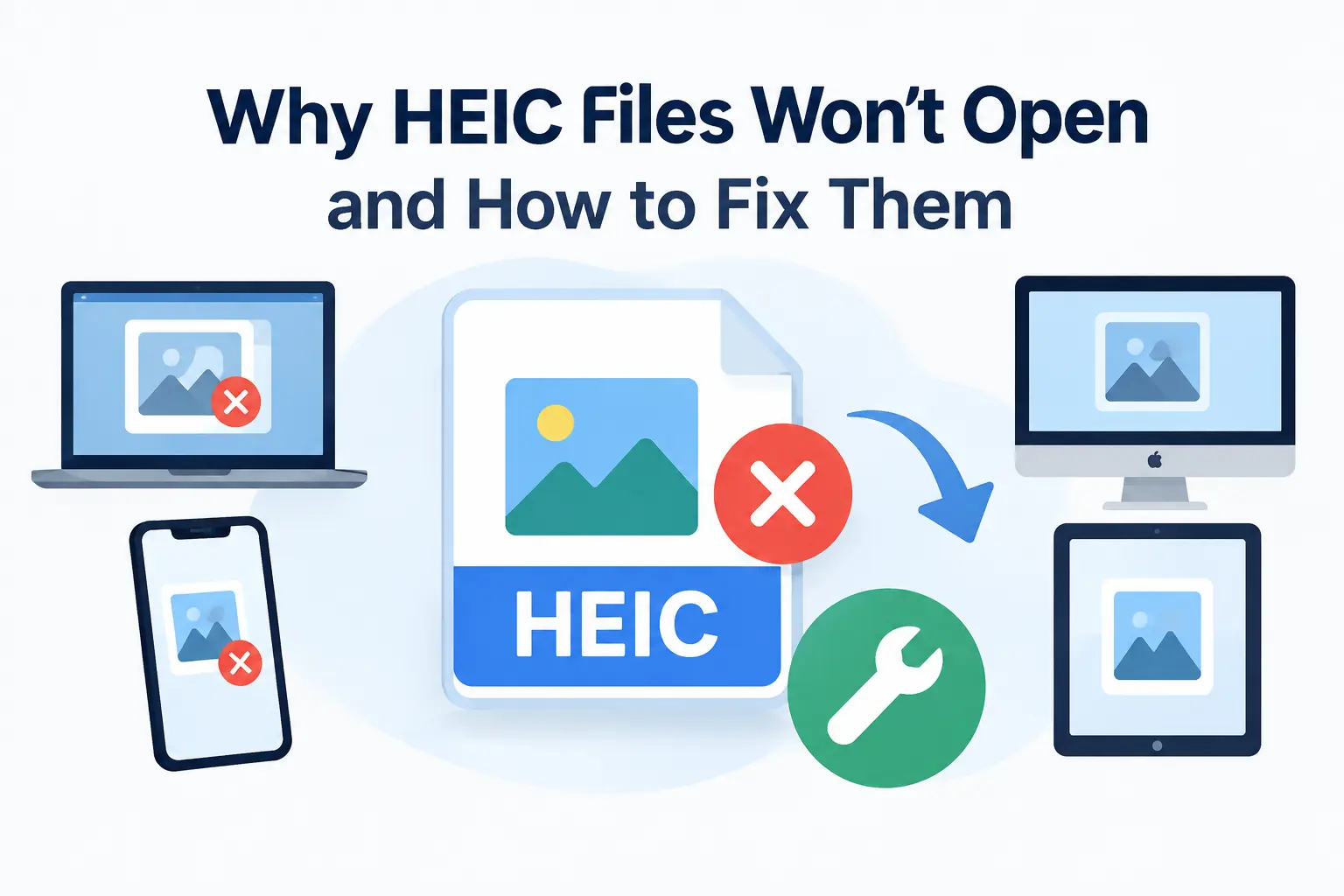
If you have ever transferred photos from an iPhone to a Windows computer and suddenly discovered that the pictures would not open, you are not alone—a file ending in. HEIC can look like an ordinary image, but the software you are using may not know how to decode it. Instead of seeing your photo, you might get an error message, a blank preview, or a warning that you need an additional extension. The good news is that a HEIC file that refuses to open is often not broken at all. In many cases, the problem is simply that your computer, browser, photo viewer, or editing program does not have the right support for the HEIF image format. Microsoft specifically notes that Windows users may encounter a message saying an extension is needed when trying to view HEIF or HEVC media.
HEIC became popular because modern smartphones can save high-quality photographs using less storage than some traditional image formats. That is useful when you have thousands of photos on your phone, but compatibility can become frustrating when you move those files to another device. Think of HEIC as a language your phone speaks fluently while an older computer may only understand JPEG. The photograph itself can be perfectly healthy, yet the application you are using simply does not understand the format. In this guide, you will learn why HEIC files won’t open, how to troubleshoot the problem on Windows, Mac, iPhone, iPad, and Android, and when converting the file to JPG or PNG is the easiest solution.
What Is a HEIC File?
HEIC is an image file format commonly associated with Apple’s use of the High Efficiency Image File Format (HEIF) for photographs. It is designed to store high-quality images efficiently, which means a phone can keep detailed photos while using less storage than it might with some older formats. Apple has supported HEIF and HEVC media for many years, and Microsoft also provides support for HEIF files through extensions and compatible applications.
The important thing to understand is that HEIC is not simply a renamed JPG. Changing .heic to .jpg in File Explorer does not actually convert the image. Microsoft explains that changing a file-name extension changes the name associated with the file but does not change the underlying format or convert the contents. This is why renaming a file from photo. heic to photo.jpg generally will not solve the problem. A genuine conversion requires software capable of decoding the original HEIC data and creating a new JPEG or PNG file.
HEIC vs. HEIF
The terms HEIC and HEIF are closely related, which can make the subject confusing. HEIF is the broader image container format, while HEIC is commonly used for files containing images encoded using HEVC-based compression. In everyday use, people often use “HEIC” to describe the photographs produced by iPhones and other devices using Apple’s high-efficiency image settings.
This distinction matters because an application may advertise HEIF support rather than specifically saying “HEIC support.” If you see HEIF in a program’s supported formats, that can be a good indication that it may be capable of opening your HEIC photograph. Microsoft, for example, refers to its Windows support as HEIF Image Extensions, while its documentation separately discusses HEVC video support.
Why HEIC Files Won’t Open
There is no single reason why a HEIC file fails to open. The most common explanation is that the application lacks the codec or image support necessary to decode the file. Windows users may see this when trying to open photographs in the Photos application without the required HEIF support installed. Microsoft identifies HEIF and HEVC support as a common reason for seeing a message that an extension is needed.
Another possibility is that the application is out of date. Even if your operating system can handle a particular format, an older image editor or photo viewer might not. Apple recommends checking for software updates when a media file does not open and trying another application that supports the format if the file itself is not damaged. There is also the possibility that the specific file has become corrupted during downloading, transferring, or storage. That is why troubleshooting should begin by determining whether the problem is the format or the individual file.
Missing HEIF Support
Missing HEIF support is one of the easiest problems to fix. On Windows, Microsoft provides a HEIF Image Extensions option, and its support documentation explains that installing the necessary extensions can allow HEIF photographs to work with compatible applications.
If you are using a Windows edition with additional media restrictions, such as Windows N, you may need additional media components as well. Microsoft’s documentation lists HEIF Image Extensions among the media codecs that can be installed after the Media Feature Pack. Once the required support is installed, restart the relevant photo application and try opening the HEIC file again.
Outdated Software or Operating System
An outdated operating system or application can also cause compatibility problems. If your computer has not been updated for a long time, the image viewer may not contain the latest format support or related fixes. The same principle applies to phones and tablets. If a HEIC image suddenly stops opening after moving between applications or devices, updating the operating system and photo application is a sensible first step.
Apple recommends checking for software updates when a media file does not open on an Apple device. Microsoft likewise recommends checking Windows updates when troubleshooting Windows problems. Updates will not repair a physically damaged image, but they can eliminate compatibility problems caused by old software.
Unsupported Apps
Sometimes the operating system supports HEIC while the specific application does not. This is particularly common with older image editors, document management applications, websites, and third-party viewers.
For example, a HEIC photograph might display correctly in one application but fail in another. That does not necessarily mean anything is wrong with the image. Apple recommends trying another application that supports the media format when you are confident that the file is undamaged. This simple test can quickly tell you whether you are dealing with a file problem or an application problem.
How to Fix HEIC Files That Won’t Open on Windows
Windows is one of the platforms where HEIC compatibility problems are especially noticeable. If you received photographs from an iPhone and Windows displays an error instead of the image, the first thing to check is whether your system has the required HEIF support.
Microsoft’s current guidance explains that Windows users may need the HEIF Image Extensions and, depending on the media involved, HEVC support. Microsoft’s Photos documentation says users can install the necessary extensions and then restart the Photos application.
If you are using Windows 10 or Windows 11, start by trying the following approach:
- Open the Microsoft Store.
- Search for HEIF Image Extensions.
- Install the appropriate Microsoft extension.
- Restart your photo application.
- Try opening the HEIC file again.
If the file still does not open, try another application that supports HEIC or convert the photograph into a more widely supported format. Microsoft also notes that OneDrive can display HEIF and HEVC files in a web browser, while downloaded files on Windows may still require a compatible codec or application.
Install HEIF Image Extensions
Installing the appropriate HEIF support is usually the most direct solution when Windows reports that an extension is required. Microsoft identifies HEIF Image Extensions as a free extension for handling HEIF images. Its documentation also notes that HEVC support may be relevant when dealing with HEVC video, although users can encounter both types of media when transferring content from phones.
After installation, completely close the Photos application and open it again. If Windows still refuses to open the file, restart the computer before trying again. This may seem like a basic step, but applications sometimes need to reload installed codecs or extensions before they become available.
Do not download random codec packages from unfamiliar websites simply because a search result promises to “fix HEIC instantly.” Installing unknown software can introduce unnecessary security and privacy risks. When an official extension is available, it is generally preferable to start there.
Try a Different Photo App
If installing the extension does not solve the problem, test the file with another application that supports HEIC. This is useful because it separates file compatibility from application compatibility.
If another viewer opens the photograph normally, your HEIC file is fine. The original application may lack the necessary support or may have a configuration problem. You can then decide whether to keep using the alternative application or convert your HEIC files into JPG for broader compatibility.
Windows also allows you to change default applications for specific file types. Microsoft provides settings for assigning an application to a particular file extension through Settings > Apps > Default apps.
Convert HEIC to JPG
If you frequently share photographs with people who use different devices, converting HEIC to JPG may be the simplest long-term solution. JPEG is supported by a huge range of operating systems, browsers, image editors, websites, printers, and online services.
Conversion is particularly useful when you need to upload a photo to a website that does not accept HEIC. It can also help when you need to send images to someone using older software. Instead of repeatedly troubleshooting compatibility, you create a standard JPEG that almost any modern device can recognize.
A HEIC-to-JPG converter works by decoding the HEIC image and creating a new JPEG image. This is fundamentally different from renaming the file extension. If privacy matters, a browser-based converter that performs processing locally on your device can be attractive because your original photograph does not necessarily need to be uploaded to a remote server.
How to Open HEIC Files on Mac
Mac users generally have better native support for HEIF and HEIC than Windows users, particularly on modern versions of macOS. Apple applications such as Photos and other built-in software support many common media formats, although compatibility can still vary depending on the operating system and application version. Apple advises users to update their software if a media file won’t open.
If a HEIC file will not open on your Mac, first try opening it in Photos or Preview. If it works in one application but not another, the problem is likely application-specific rather than a damaged file.
Update macOS and Photos
Keeping macOS and your applications updated is one of the simplest ways to reduce compatibility issues. Apple specifically recommends checking for software updates when media files fail to open.
If the image still refuses to open after updating, check whether other HEIC photographs work. If several HEIC files open successfully but one particular photograph fails, the individual file may be damaged. If none of your HEIC files work, the problem is more likely related to software support, file associations, or the application you are using.
How to Open HEIC Files on iPhone and iPad
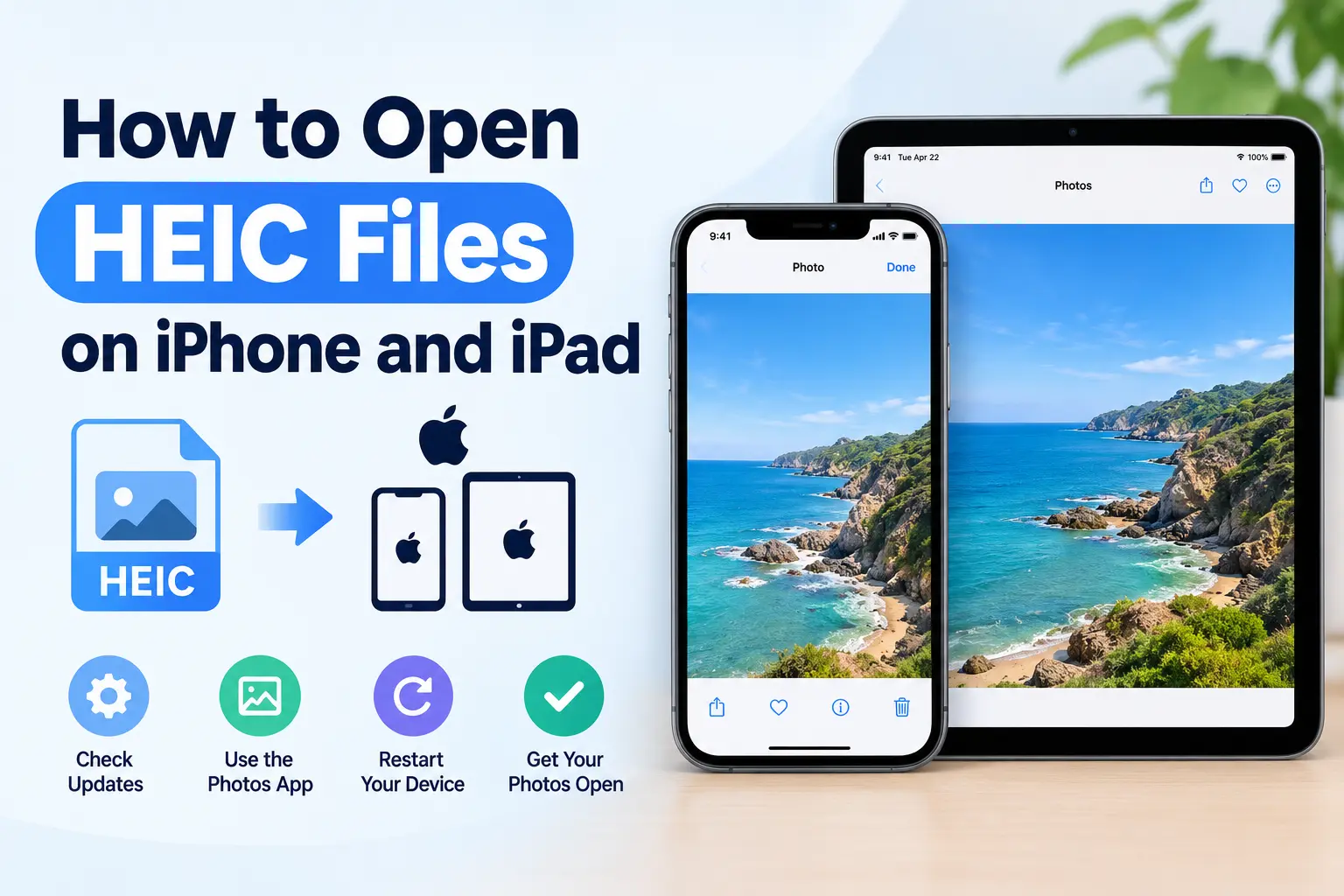
HEIC files are closely associated with Apple’s high-efficiency photo workflow, so iPhones and iPads generally handle them naturally. If a HEIC image captured on your iPhone suddenly refuses to open, begin with the basics: restart the device, check for operating system updates, and try opening the photograph through the Photos application.
Apple recommends updating the operating system and applications when unsupported media creates problems.
If the photograph is stored in iCloud, also consider whether the original has fully downloaded. A cloud-based photo may have a preview available while the full-resolution original still needs to be retrieved. Apple provides separate guidance for situations where iCloud Photos are not loading correctly on a PC.
If you need maximum compatibility when sharing future photographs, you can also review your camera format settings. Microsoft notes that some Apple devices provide a Most Compatible camera option, although availability can vary by device and software version.
How to Open HEIC Files on Android
Android compatibility varies considerably because different manufacturers, applications, and Android versions may handle image formats differently. A HEIC file might open normally in the device’s gallery application but fail in another application.
If a HEIC image will not open, try viewing it with another updated gallery or photo application. If the image came from an iPhone, you can also transfer it again and check whether the original transfer was incomplete.
Another practical solution is conversion. If you do not specifically need HEIC, converting the file to JPG or PNG can eliminate compatibility problems across many Android devices and applications. JPG is usually the better choice for photographs because it produces relatively compact files, while PNG is more useful when you need lossless image storage or transparency.
How to Tell If a HEIC File Is Damaged
Not every HEIC opening error is caused by compatibility. Sometimes the actual image file is damaged. The easiest test is to open several HEIC files from the same source.
Suppose you transferred 200 photographs from an iPhone and 199 open successfully, while one particular file refuses to open anywhere. That one file deserves closer investigation. On the other hand, if none of the 200 files open on your Windows computer but they all display normally on your iPhone, the files are probably healthy, and the problem is more likely related to Windows software support.
You can also download or transfer the troublesome photograph again. A partially transferred file can appear normal in name and size while containing incomplete image data. Apple notes that a media file may fail to open because it is damaged or because the device or application does not support its format.
Another useful test is to convert the file. If a trusted converter can successfully read the HEIC and produce a JPG, that is a strong indication that the underlying image data is readable. If multiple compatible applications and converters all fail to process the same file, corruption becomes a more likely explanation.
How to Prevent HEIC Compatibility Problems
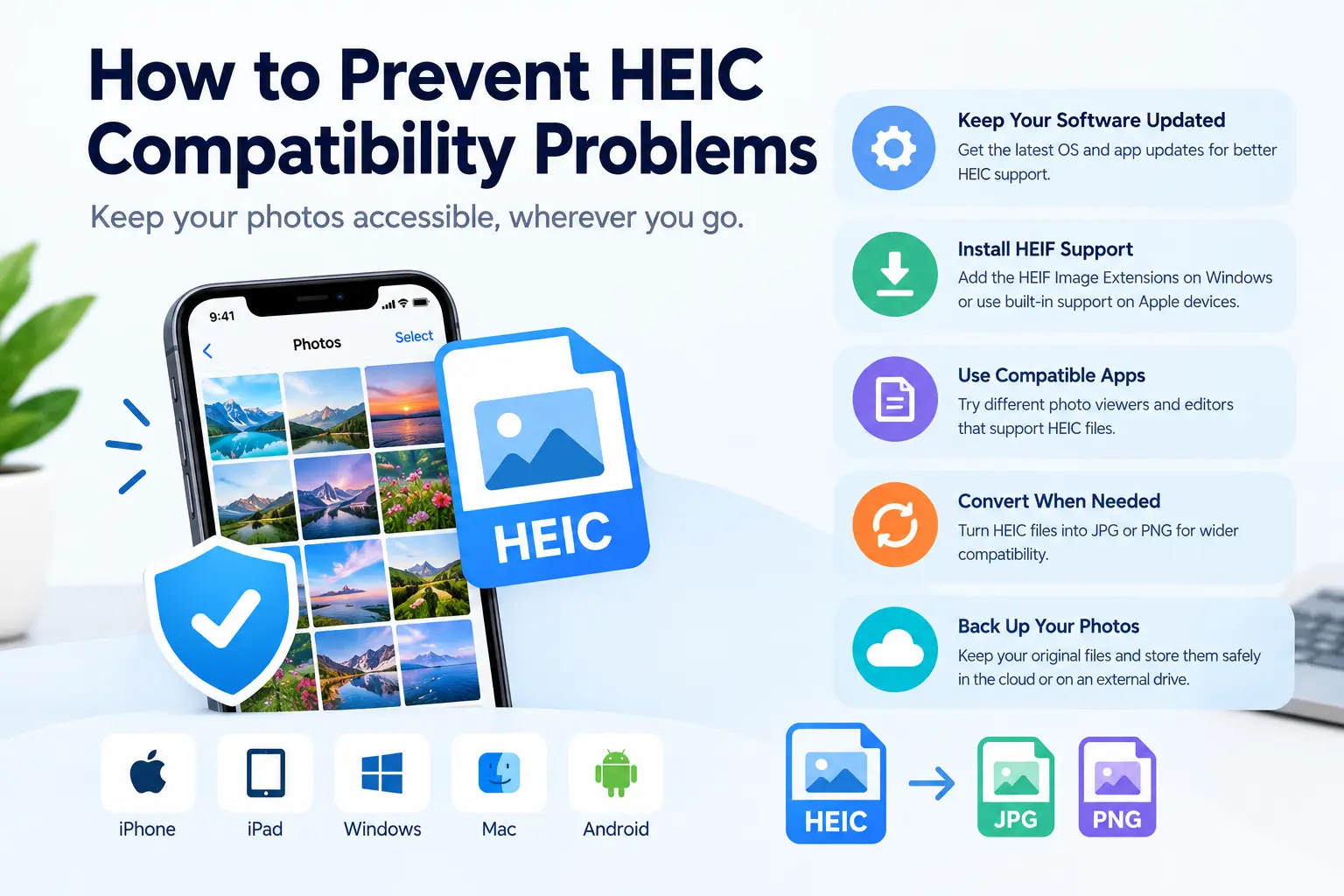
The easiest way to avoid future HEIC headaches is to think about where your photographs are going to be used. HEIC is convenient for efficient storage, but not every website, application, or older computer supports it equally well.
If you primarily use Apple devices and modern applications, keeping your photos in HEIC can make sense. If you regularly send images to Windows users, upload them to websites, use older editing software, or work with applications that specifically require JPEG, conversion may save you time.
Microsoft notes that some devices can automatically convert HEIF or HEIC photographs into more widely supported formats during transfer or sharing, depending on the device and settings.
It is also a good idea to maintain original files when image quality and long-term storage matter. Instead of immediately deleting the original HEIC after creating a JPG copy, keep the original safely backed up and use the JPEG when compatibility is more important. That gives you both options: an efficient original and a broadly compatible copy.
Should You Convert HEIC to JPG or PNG?
For most people, HEIC to JPG is the best compatibility solution. JPG is particularly appropriate for photographs because it offers a good balance between image quality and file size. It is supported by virtually every modern operating system, browser, image editor, social platform, and website.
PNG is different. It uses lossless compression and is particularly useful for graphics, screenshots, logos, illustrations, and images where maintaining exact pixel information matters. However, PNG files can be considerably larger than JPG files when used for ordinary photographs.
| HEIC | Smartphone photography | Good but varies | Efficient storage |
| JPG | Photos and sharing | Excellent | Small, widely supported |
| PNG | Graphics and screenshots | Excellent | Lossless quality |
| HEIF | High-efficiency images | Varies | Flexible image container |
The right choice depends on what you need to do with the image. If your only goal is to make a phone photograph open everywhere, HEIC to JPG is usually the practical choice. If you are preserving graphics or require lossless output, PNG may be more appropriate.
Conclusion
When a HEIC file will not open, the problem is usually easier to solve than it first appears. The file may require HEIF support, an updated application, a compatible photo viewer, or a different method of transferring the image. On Windows, Microsoft specifically recommends installing the appropriate HEIF and HEVC extensions when necessary, while Apple recommends keeping software updated and trying another compatible application when media does not open.
The most important thing is not to assume that an HEIC file is damaged simply because your computer cannot display it. Test another HEIC file, try another application, and check whether the same photograph opens on the device where it was created. If compatibility continues to be a problem, converting the image to JPG or PNG provides a straightforward way to make the photograph usable across a much wider range of devices and software.
Why won’t my HEIC file open on Windows?
The most common reason is that Windows or the application you are using does not have the required HEIF image support. Microsoft recommends installing the appropriate HEIF Image Extensions and restarting the Photos application.
Can I rename HEIC to JPG to make it open?
No. Renaming a photo from HEIC to photo.jpg does not convert the actual image data. Microsoft explains that changing a file extension changes the file name but does not change the underlying file format.
Is HEIC better than JPG?
HEIC can provide efficient storage while maintaining high image quality, which makes it useful for smartphone photography. JPG, however, has much broader compatibility, so it is often better when you need to share or upload photographs across different platforms.
How do I convert a HEIC file to JPG?
You can use a HEIC-to-JPG converter that supports the format. The converter reads the HEIC image and creates a new JPEG file. If privacy is important, consider a converter that processes files locally in your browser rather than requiring you to upload personal photographs to a server.