A HEIC to PNG converter changes HEIC photos into PNG files that work better with software and workflows that expect PNG. PNG is a lossless image format with broad support across web browsers and image tools.
PNG Engine lets you convert HEIC and HEIF images directly in your browser. Your photos are processed on your device rather than uploaded to a server, and the site states that there is no limit on the number of images you can convert.
What Is HEIC to PNG Conversion?
HEIC is an image file format associated with Apple’s HEIF image format. Apple describes HEIC files as containing HEVC-compressed images. This compression can make photos more storage-efficient, but some applications and workflows still expect a PNG file instead.
PNG, or Portable Network Graphics, is designed for lossless storage of raster images. It supports features such as transparency and is widely implemented by web browsers, image viewers, and image-creation software.
When you convert HEIC to PNG, the converter reads the image data from the HEIC file and creates a new PNG representation of the image. With PNG Engine, this processing takes place locally in the browser rather than sending your photos to a remote conversion server.
This is useful when you need the image in PNG format for editing, design work, websites, documents, or another application that works better with PNG.
Why Convert HEIC to PNG?
Broader compatibility: PNG is supported by browsers, image viewers, graphics applications, and many other software environments.
Lossless PNG output: PNG uses lossless compression, meaning PNG itself does not use lossy image compression to approximate the image data. This makes PNG useful when preserving image information is important.
Useful for graphics and transparency: PNG supports transparency and different color representations, making it practical for graphics, screenshots, interface elements, and other images where these capabilities matter.
Easier workflow with PNG-based tools: If an application, website, editor, or design workflow asks specifically for a .png file, converting the HEIC image first can avoid format compatibility problems.
No server upload with PNG Engine: The conversion on PNG Engine happens in your browser, so your HEIC and HEIF images are not uploaded or stored by the conversion service.
How to Convert HEIC to PNG Online
- Upload your HEIC files — Drag and drop your HEIC or HEIF images into PNG Engine, or use the file-selection control to choose them from your device.
- Choose your output settings — Select PNG from the Convert to menu and choose a maximum dimension if you need to change the output dimensions.
- Convert the images — Select Convert Images to process the selected HEIC or HEIF files directly in your browser.
- Download the PNG files — After conversion, save the resulting PNG images to your device.
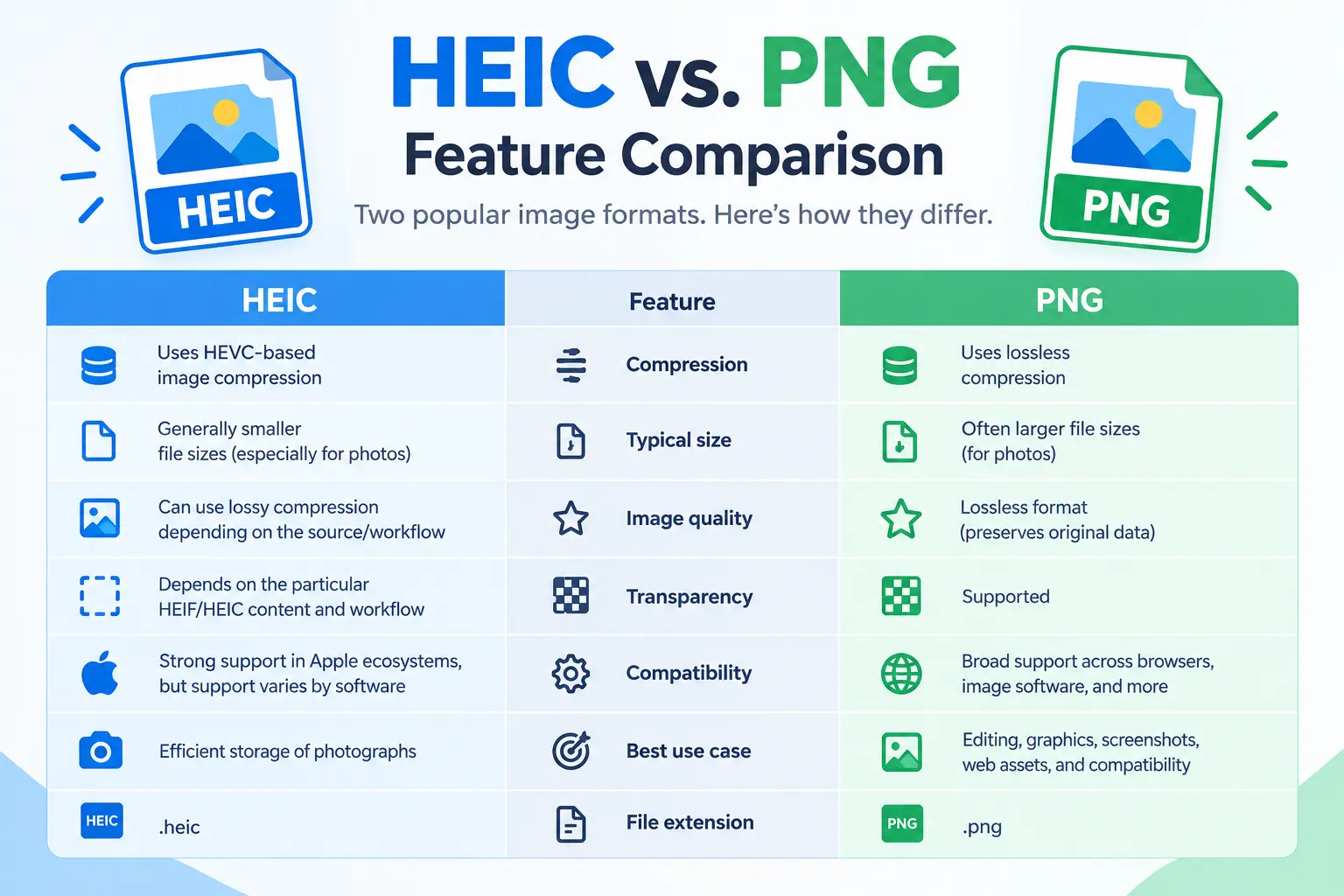
HEIC vs. PNG: Feature Comparison
| Compression | HEIC uses HEVC-based image compression | PNG uses lossless compression |
| Typical storage efficiency | Designed for efficient image storage | Often produces larger files from photographic images |
| Image quality | Can use lossy compression depending on the source/workflow | Lossless format |
| Transparency | Depends on the particular HEIF/HEIC content and workflow | Supported |
| Compatibility | Strong support in Apple ecosystems, but support varies by software | Broad support across browsers and image software |
| Best use case | Efficient storage of photographs | Editing, graphics, screenshots, web assets, and compatibility |
| File extension | .heic | .png |
PNG’s specification defines it as a lossless raster-image format and includes support for transparency. The W3C also notes that PNG is widely implemented in web browsers, image viewers, and image-creation tools.
Real-World HEIC to PNG File Size Examples
Converting HEIC to PNG does not normally mean reducing file size. HEIC is designed for efficient image storage, while PNG uses lossless compression, so photographic images can become substantially larger when converted to PNG.
The following figures are illustrative ranges, not guaranteed results. Actual output depends on the original image, dimensions, image content, and the selected maximum dimension.
| iPhone-style photo | 1–4 MB | 3–12 MB | +100% to +300% |
| Detailed outdoor photo | 2–5 MB | 5–18 MB | +100% to +300% |
| Screenshot | 0.5–2 MB | 1–4 MB | +50% to +200% |
| Simple graphic | 0.2–1 MB | 0.3–2 MB | Variable |
| Smaller resized photo | 0.5–2 MB | 1–5 MB | Variable |
These examples are intended to explain the general behavior of the formats, not to predict the exact output from PNG Engine.
If your main goal is smaller files, PNG may not be the most appropriate target format for photographic images. HEIC-to-PNG conversion is usually for compatibility, editing, or working with a lossless PNG format rather than maximum compression.
Recommended Settings for Best Results
- Need the original dimensions? Keep the maximum-dimension setting at its full-size option, so the image isn’t intentionally reduced.
- Need a smaller PNG? Select a lower maximum dimension when the full resolution is unnecessary. Reducing dimensions can substantially reduce the amount of image data that needs to be stored.
- Converting photographs? Remember that PNG is lossless but may produce a considerably larger file than the original HEIC.
- Converting screenshots or graphics? PNG can be a practical choice when sharp edges, text, or transparency are important.
The PNG Engine interface also includes a JPG quality control, but that control is relevant when JPG is selected as the output format rather than when converting to PNG.
Common Use Cases
- iPhone photo compatibility — Convert HEIC photos into PNG when an application or workflow specifically requires PNG files.
- Graphic design — Use PNG versions of images in design workflows that support or require the PNG format.
- Screenshots and interface images — Convert images when you need a PNG file for documentation, tutorials, presentations, or software projects.
- Website content — Create PNG versions of suitable images for websites or web-based tools that specifically request PNG.
- Image editing — Convert HEIC files when your chosen editing workflow works more conveniently with PNG.
Why Use a Browser-Based Converter Instead of Uploading to a Server?
Many online conversion services require you to upload your image to a remote server before processing it. A browser-based converter can instead process the file locally on your own device.
PNG Engine specifically states that its HEIC and HEIF conversion happens in the browser and that the photos are never uploaded or stored anywhere.
- Privacy: Your HEIC and HEIF photos remain on your device during the conversion process.
- No server upload: The site states that your images are not uploaded to a remote conversion server.
- Convenient processing: You can convert images directly from the browser without creating an account.
- No image-count limit: PNG Engine states that there is no limit on the number of images you can convert.
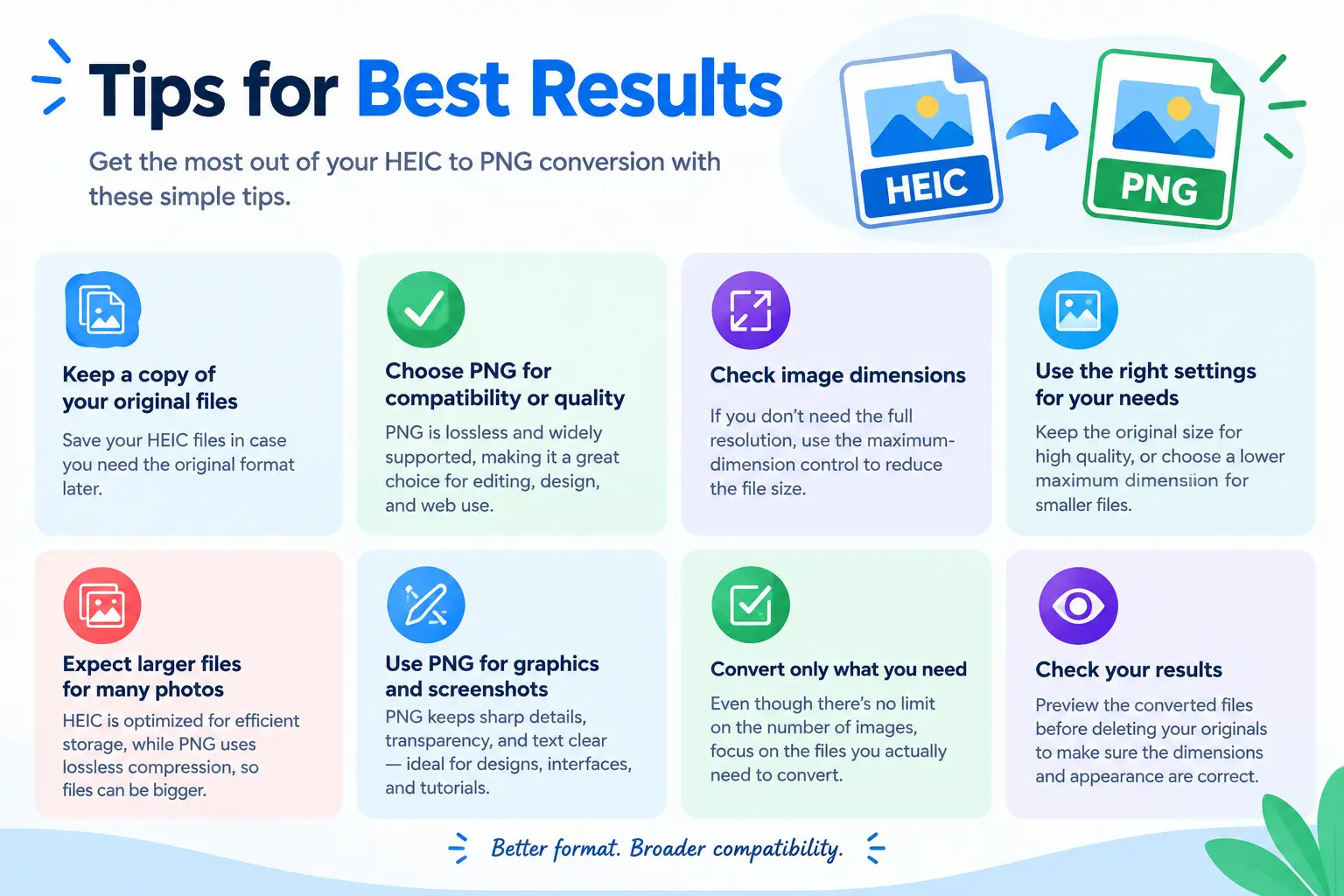
Tips for Best Results
- Keep a copy of the original HEIC files if you may need the original format later.
- Choose PNG when compatibility or lossless output matters, rather than expecting PNG to reduce a photographic image’s file size.
- Check the image dimensions before converting large photos if you do not need their full resolution.
- Use the maximum-dimension control thoughtfully when preparing images for websites, documents, or smaller displays.
- Expect larger files for many photographs because HEIC is optimized for efficient storage while PNG uses lossless compression.
- Use PNG for graphics and screenshots when sharp details, transparency, or lossless storage are useful.
- When working with a large photo library, convert only what you need, even though PNG Engine doesn’t limit the number of images.
- Check the converted files before deleting your originals to make sure the dimensions and appearance meet your requirements.
Frequently Asked Questions
Can I convert HEIC to PNG for free?
Yes. PNG Engine provides a free HEIC to PNG converter, with no sign-up required. The site also states that there is no limit on the number of images you can convert.
Are my HEIC photos uploaded when I use the HEIC to PNG converter?
No. PNG Engine states that the conversion happens locally in your browser and that HEIC and HEIF photos are never uploaded or stored anywhere.
Is there a limit on how many HEIC files I can convert?
PNG Engine currently states that there is no limit on how many images you can convert. The website does not publish a separate maximum file-size limit per image on the converter page.
Will converting HEIC to PNG reduce image quality?
PNG is a lossless image format, so PNG itself does not use lossy compression to approximate image data. However, the final result can still depend on the original HEIC image and any dimension changes selected during conversion.