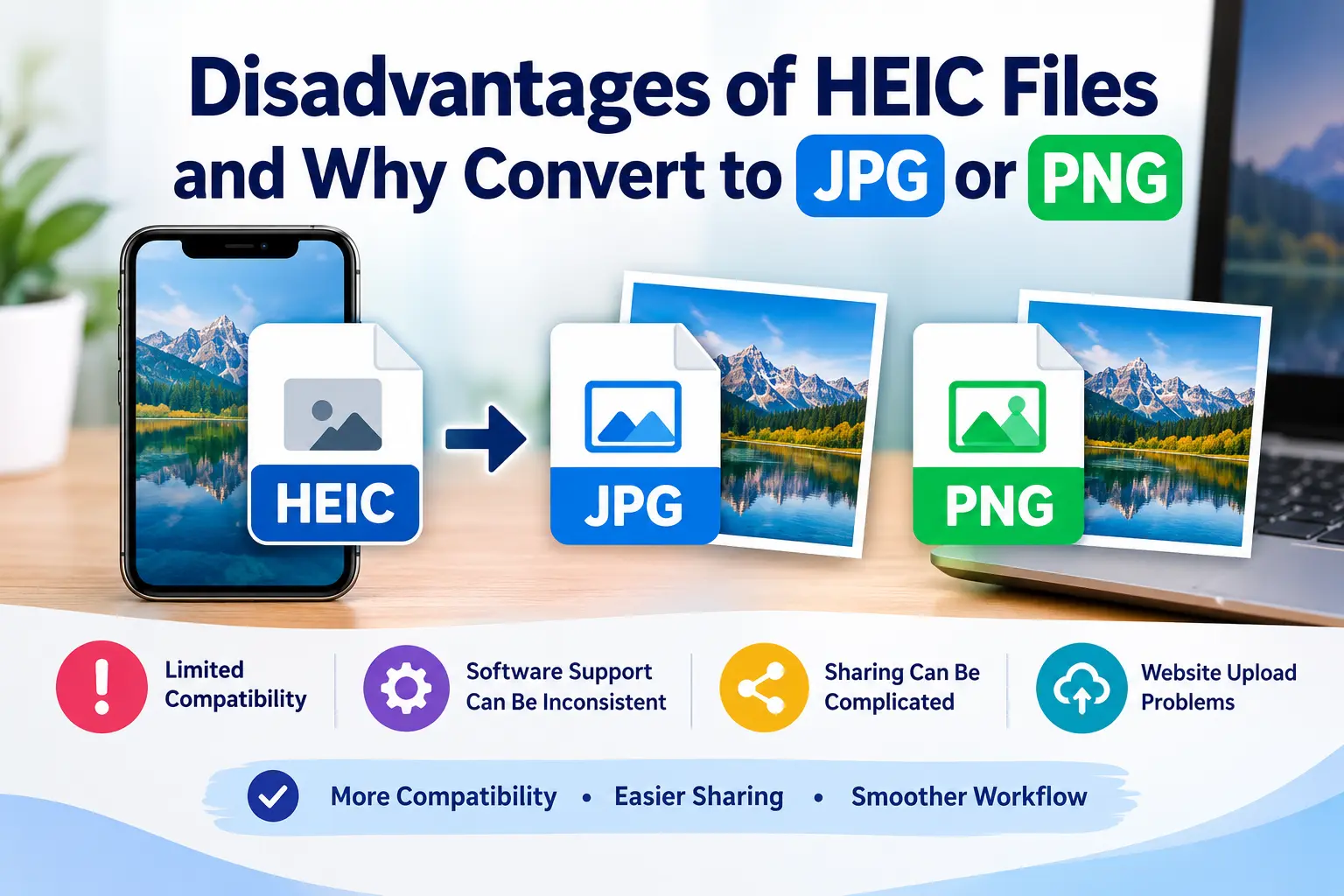
If you use an iPhone or iPad, you may have noticed that your photos sometimes come with a . HEIC file extension instead of the familiar .JPG or .JPEG extension. At first, this can seem strange. You take a perfectly normal photo, transfer it to your computer, and suddenly a program says that it cannot open the file. The photo itself is not necessarily damaged; the problem is usually that the application, operating system, website, or device does not properly support the HEIC format. Apple introduced HEIF/HEIC support with iOS 11 and macOS High Sierra, and the format remains useful because it can provide smaller files while maintaining high visual quality. Apple itself describes HEIF as offering better compression than JPEG, while also providing a Most Compatible camera setting that saves new photos as JPEG instead.
That efficiency is one reason HEIC became popular, but file size is only one part of the story. An image format is useful when you can actually open, edit, upload, share, archive, and reuse the image wherever you need it. This is where HEIC can become inconvenient. A photographer might have no trouble opening a HEIC file on a modern Mac, while someone using an older Windows computer, an unfamiliar image editor, an online application, or a particular website may immediately run into compatibility problems. Adobe also notes that HEIC support on Windows can require additional HEIF and HEVC support tools, while JPEG has much broader compatibility across operating systems, software, and browsers.
For many everyday situations, converting HEIC to JPG is therefore less about improving the original photograph and more about making the file easier to use. JPG is particularly practical for photographs, email attachments, social media, documents, websites, and general sharing. PNG is different: it is usually a better choice when you need lossless compression or transparency, such as with graphics, screenshots, logos, illustrations, and images that contain sharp edges. Adobe describes JPEG as a common format for photographs and PNG as a lossless format that supports transparency. The right conversion depends on what you plan to do with the image.
What Is a HEIC File?
HEIC is an image file format associated strongly with Apple’s use of HEIF, or High Efficiency Image File Format. More specifically, HEIC commonly refers to HEIF images compressed using HEVC technology. Apple introduced HEIF/HEIC as part of the move away from older image formats, particularly because modern smartphone cameras produce increasingly detailed photographs that can consume significant storage. Apple says HEIF can provide better compression than JPEG while maintaining comparable visual quality, which makes it attractive for storing large photo libraries on phones and in cloud storage.
The important thing to understand is that HEIC was designed to solve a real problem. Smartphone cameras capture high-resolution photographs, and users may take hundreds or thousands of pictures. Saving every photograph as a larger traditional image file can consume considerable storage over time. HEIC offers a more efficient alternative, allowing modern devices to store high-quality images in less space. Adobe similarly describes HEIC as a space-saving format that can provide high resolution with efficient compression.
The problem appears when the image leaves the environment where HEIC is well supported. Think of HEIC as a language that your phone speaks fluently. Your iPhone understands it, many modern Apple applications understand it, and an increasing number of professional programs understand it. But not every computer, website, printer workflow, document application, or image-processing tool necessarily speaks that language. JPG, by comparison, is a common international language used for decades. That difference is the main reason HEIC conversion remains useful.
How HEIC Differs From Traditional Image Formats
HEIC and JPG can both store detailed photographs, but they were designed with different priorities. HEIC emphasizes modern compression efficiency and can preserve high-quality images using less storage space. JPG prioritizes broad compatibility and has been used for photographs across computers, websites, cameras, applications, and online services for many years. Adobe describes JPEG as one of the broadly compatible formats that can be opened and edited across many operating systems, applications, and modern web browsers.
PNG has another purpose. Rather than being primarily a photograph-sharing format, PNG is particularly useful when preserving image data and transparency matters. It uses lossless compression, meaning the compression process is designed to preserve the original image data rather than deliberately discarding visual information in the way lossy JPEG compression does. Adobe notes that PNG supports transparency and lossless compression, making it especially useful for graphics and images requiring transparent backgrounds.
| Compression efficiency | Excellent | Good | Lower for photographs |
| Typical photo use | Excellent | Excellent | Good |
| Compatibility | Moderate and improving | Very broad | Very broad |
| Transparency | Supported in HEIF workflows | No | Yes |
| Lossless compression | Can support advanced image data | No | Yes |
| Website compatibility | Depends on platform | Excellent | Excellent |
| Best general use | Modern photo storage | Sharing and photographs | Graphics and transparency |
The choice therefore is not simply about asking which format is technically “better.” It is about asking where the image needs to go next. A HEIC file may be the best choice for storing photographs on a compatible Apple device, while a JPG may be the better choice for sending the same photograph to someone else. A PNG may make more sense if the image contains transparency or needs to retain lossless quality.
Why Apple Uses HEIC for Photos
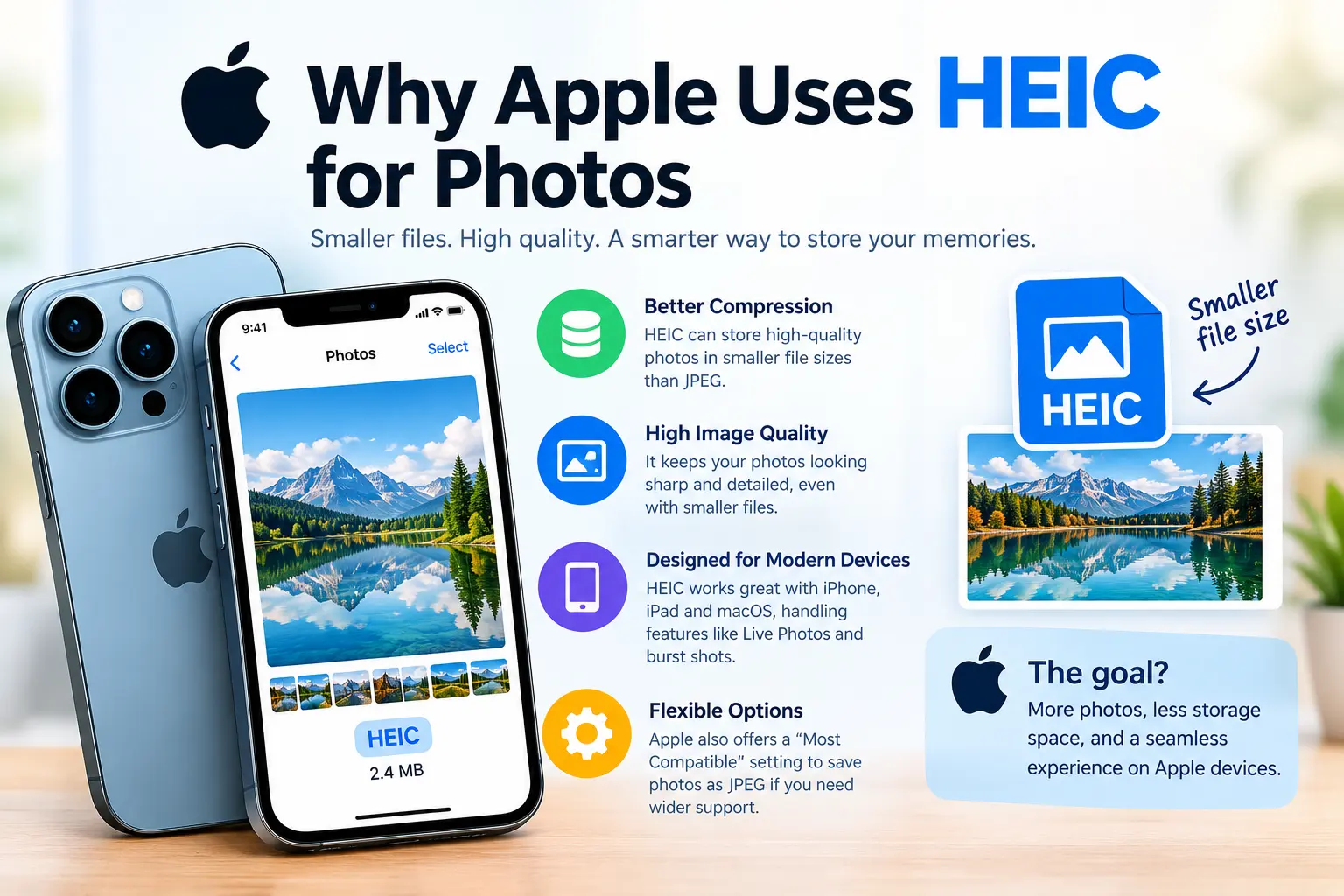
Apple’s decision to use HEIF/HEIC was driven largely by the need for more efficient storage. Modern iPhones capture high-resolution photographs, and features such as burst photography and Live Photos can create large amounts of image data. A more efficient format helps reduce the storage burden without forcing users to sacrifice as much image quality. Apple’s documentation states that HEIF and HEVC offer better compression than JPEG and H.264, respectively.
Apple also gives users a choice. On supported iPhones and iPads, the Camera settings include a Most Compatible option. With that setting enabled, new photos are captured in JPEG rather than HEIF, making them easier to use with older systems and applications. Apple specifically describes JPEG as the more broadly compatible choice, while its High Efficiency setting uses HEIF to save space.
This is an important clue about the HEIC debate. HEIC is not inherently a bad format. In fact, it can be an excellent format when your devices and software support it. The disadvantages become noticeable when you need to move outside that ecosystem. If your entire workflow is built around current Apple devices and compatible software, you may rarely notice any problem. If you regularly exchange images with different computers, websites, customers, clients, or online tools, compatibility becomes much more important.
The Main Benefits of HEIC
Before focusing entirely on disadvantages, it is useful to understand why anyone would choose HEIC in the first place. Its biggest advantage is storage efficiency. A smaller image file can mean more available space on a phone, faster transfers in certain situations, and reduced storage requirements for large photo collections. Adobe also notes that HEIC can provide smaller files than JPEG while maintaining high image quality.
HEIC can also support modern image capabilities beyond the basic requirements of an ordinary photograph. The broader HEIF format can store image sequences and additional information, making it suitable for modern photography workflows. Apple’s developer documentation shows that its photography framework supports both HEIF and JPEG capture and can select supported codecs depending on the device and file type.
So why convert it? Because efficiency does not automatically equal compatibility. A file can be technically advanced and still be inconvenient if the recipient can’t open it. That is the central trade-off with HEIC: excellent efficiency in compatible environments versus potential friction when you need universal accessibility.
Disadvantage 1: Limited Compatibility
The biggest disadvantage of HEIC is compatibility. While support has improved substantially, HEIC is still not as universally accepted as JPG. Adobe states that JPEG files have broader compatibility across operating systems, software, and devices, while HEIC can be more limited depending on the platform.
This becomes obvious when you move an iPhone photograph to a computer. On a modern Mac, opening the image may be completely normal. On other systems or older software, however, the application may fail to recognize the file, show a thumbnail but refuse to edit it, or request additional components. Adobe’s documentation specifically notes that Windows users may need HEIF and HEVC support tools for working with HEIC files in certain applications.
Compatibility problems are particularly annoying because they can appear unexpectedly. Imagine sending a group of vacation photographs to a friend, uploading product photos to a website, or attaching an image to an online application. You may see the picture perfectly on your phone, yet the recipient sees an unsupported-file message. Converting the image to JPG before sending it removes much of that uncertainty.
Problems on Windows and Older Devices
Windows support has improved, but software support can still depend on the installed operating system components and applications. Adobe’s current documentation says Windows users working with HEIC may need the HEIF Image Extensions and HEVC Video Extensions support tools.
This means the problem is not necessarily that Windows cannot handle HEIC at all. Rather, the experience may depend on the exact application, operating system configuration, installed codecs, and hardware or software support. For someone who wants to open a photograph, this can feel unnecessarily complicated.
JPG avoids much of that friction. It has been around for decades and is supported by an enormous range of applications and devices. If the goal is to send a photograph to someone and make it highly likely that they can open it, HEIC to JPG conversion is often the practical choice.
Disadvantage 2: Software Support Can Be Inconsistent
Another problem is that HEIC support varies between applications. One program may open the file perfectly while another may refuse to import it. A photo-management application may display the image, while an older editing application cannot. This can create a frustrating situation where you know the file itself is fine, but the software you need to use does not handle it correctly.
Professional software support has improved significantly. For example, Adobe currently documents HEIF/HEIC support in Lightroom and Camera Raw on supported versions of macOS and Windows. But this does not mean every application in every workflow supports HEIC equally well. Older programs, specialized business applications, online upload systems, and smaller utilities may still expect JPG or PNG.
This matters particularly if you work with multiple people. You cannot always control which software another person uses. A photographer may send you a HEIC file assuming it is perfectly normal, while a customer using an older application may have no idea how to open it. Converting the file to a more compatible format creates a simpler handoff and reduces the number of technical questions involved.
Disadvantage 3: Sharing HEIC Files Can Be Complicated
Sharing is another area where HEIC can create confusion. Apple’s own documentation acknowledges that when HEIF media is shared through methods such as AirDrop, Messages, or email, the receiving device’s capabilities can influence what happens. If the destination does not support the newer format, the image may be automatically shared in a more compatible format such as JPEG.
Automatic conversion can be convenient, but it can also make the workflow less predictable. You may believe that you are sending the original HEIC file, only to discover that the recipient received a JPEG. In another situation, an application may preserve the HEIC file and leave the recipient unable to open it. The exact behavior depends on the sharing method and the receiving environment.
For casual personal sharing, this may not matter. For professional work, it can. Suppose you are sending photographs to a client, uploading images to a marketplace, submitting documents, or transferring product photos to a website. You generally want to know exactly what format the recipient will receive. Converting your HEIC images yourself gives you more control over that process.
When Automatic Conversion Happens
Automatic conversion can be useful when Apple’s system recognizes that the destination does not support HEIF. Apple’s documentation explains that HEIF media can be automatically shared in a more compatible format through certain sharing methods when necessary.
However, automatic conversion should not be treated as a universal solution. Different apps and services handle image files differently. Some websites may reject HEIC immediately instead of converting it. Some applications may preserve the original file, while others may generate a compatible copy.
That is why a dedicated HEIC converter can be useful. Instead of relying on every application in the workflow to make the right decision, you convert the file into the format you actually need. If compatibility is the priority, JPG is usually the straightforward choice. If transparency or lossless output is important, PNG can be more appropriate.
Disadvantage 4: HEIC Can Cause Website Upload Problems
Website upload systems are another common source of frustration. A website may have a file-upload field designed around traditional formats such as JPG, JPEG, and PNG. Even if your browser or operating system can display a HEIC image, the website’s server-side image processing system may not accept it.
This can happen with profile-photo forms, online applications, e-commerce platforms, content-management systems, image compressors, printing services, document systems, and other web applications. The upload button may reject the file, display an “unsupported format” message, or fail without explaining exactly what went wrong.
JPG and PNG are safer choices for general web workflows because they are extensively supported. Adobe describes JPEG as commonly used for photographs and web documents, while PNG is widely used for web display and supports transparency. If you are preparing an image for an unfamiliar website, converting HEIC before uploading can save time.
This is particularly important for website owners and content creators. If you receive photographs from an iPhone and need to publish them on a website, you may prefer to convert them during your image-preparation process. That creates a predictable workflow: receive the original, convert it, resize or compress it if necessary, add metadata if needed, and then upload the web-ready image.
Disadvantage 5: HEIC Is Not Ideal for Every Editing Workflow
HEIC can work well in modern photo-editing software, but compatibility becomes more complicated when your workflow involves several different applications. A file may move from one editor to another, pass through a batch-processing utility, enter a publishing system, and eventually be imported into another application. Every step introduces another potential compatibility issue.
This is where JPG or PNG can be more practical. JPG is particularly suitable for ordinary photographs and continuous-tone images. PNG is better suited to graphics where lossless quality and transparency are important. Adobe’s image-format documentation specifically identifies JPEG as a common choice for photographs and PNG as a lossless format with transparency support.
There is also a difference between editing the original and creating a compatible copy. If the HEIC file is your original camera file, keep it unchanged. You can then create a JPG or PNG copy for a particular purpose. This approach gives you the best of both worlds: the original remains available, while the converted version is easier to distribute.
In other words, conversion does not have to mean throwing HEIC away. Think of your HEIC file as the master copy and the JPG or PNG as a working copy created for a specific destination. That is often a much safer approach for important photographs.
Disadvantage 6: HEIC Can Create Compatibility Problems for Long-Term Storage
Long-term storage is another reason to think carefully about file formats. When you archive photographs, you want to consider not only whether your current computer can open them but also whether future software and devices will continue to support them.
HEIC is increasingly supported, so it would be inaccurate to describe it as an obsolete or unusable format. Modern Apple systems support it natively, and major professional applications have added support. Adobe, for example, currently documents HEIC support in Lightroom and Camera Raw.
Still, broadly compatible formats can have an advantage when you are creating files that need to be opened by many different people over many years. JPG has an exceptionally long history of use, while PNG is also widely supported. For important archives, some people may choose to retain the original HEIC while also creating a compatible copy in JPG or another suitable format.
The key is not to assume that one format must replace another. A sensible archival strategy can preserve the original high-efficiency file while maintaining accessible copies for sharing and future workflows. That approach protects both image quality and compatibility.
HEIC vs JPG vs PNG: Which Format Should You Use?
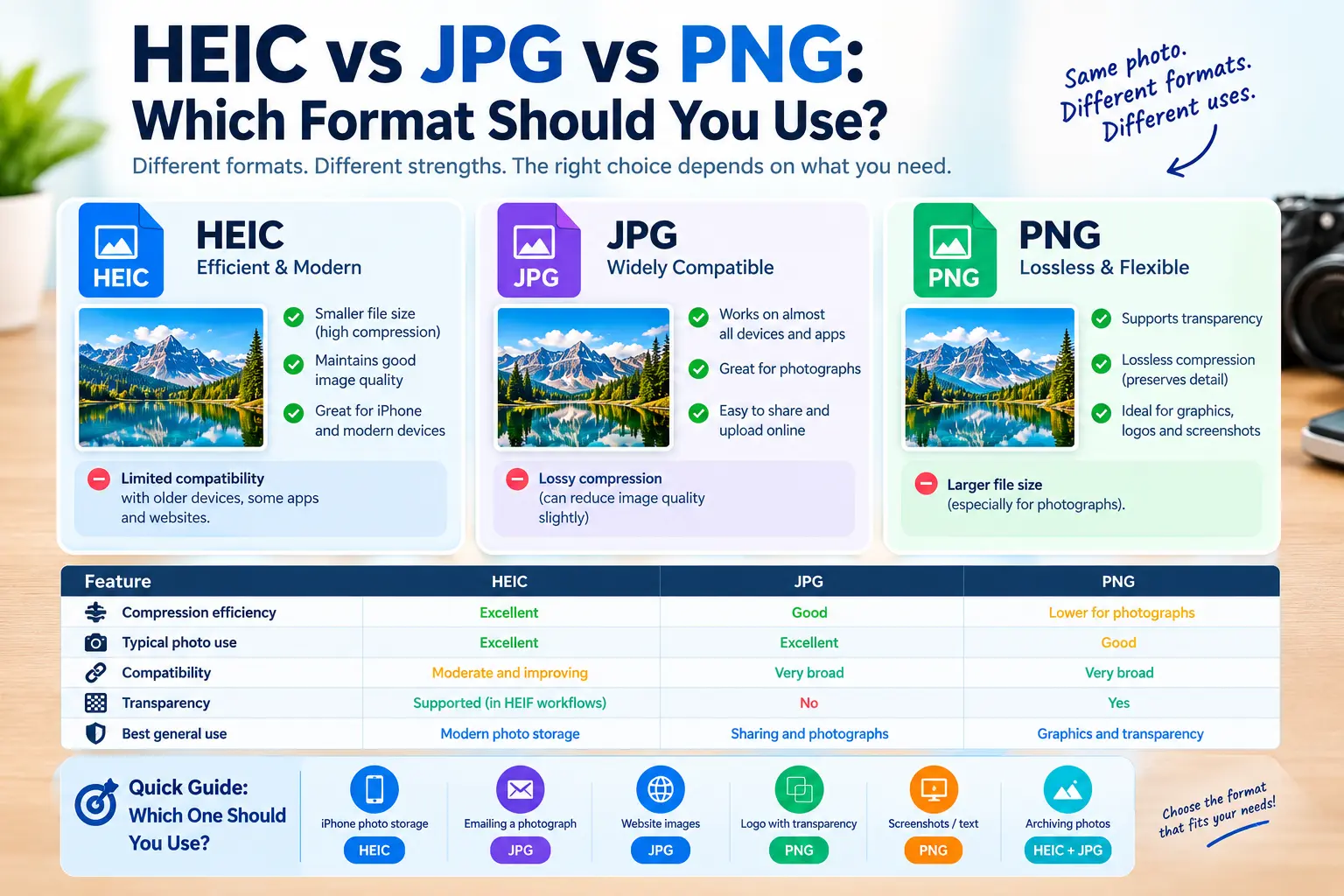
Choosing between HEIC, JPG, and PNG is easier when you focus on the image’s purpose. If you are storing thousands of smartphone photographs on a compatible device, HEIC can be very useful because of its efficient compression. If you are sending photographs to a wide range of people or uploading them to a general website, JPG is usually the safer option. If you need transparency or lossless image storage, PNG is often the better fit.
| iPhone photo storage | HEIC | Efficient storage |
| Emailing a normal photograph | JPG | Broad compatibility |
| Website photograph | JPG | Widely supported |
| Logo with transparency | PNG | Transparency support |
| Screenshot with sharp text | PNG | Lossless compression |
| Photo for an unfamiliar application | JPG | High compatibility |
| Archiving original iPhone photos | HEIC + backup copy | Preserves original and compatibility |
| Graphic requiring transparency | PNG | Supports transparent backgrounds |
When JPG Is the Better Choice
JPG is usually the best destination when the image is a photograph and compatibility matters. It works well for email, social media, websites, documents, presentations, online forms, and general file sharing. Adobe describes JPEG as commonly used for photographs and continuous-tone images and notes its broad compatibility.
The main trade-off is compression. JPG uses lossy compression, which means some image data is discarded as the file is compressed. Higher compression can reduce the file size further but may also reduce image quality. For a normal photograph intended for sharing or web use, this trade-off is often perfectly acceptable.
If someone asks you to send an iPhone photograph and you have no idea what software they use, HEIC to JPG is generally the safest option. You are choosing compatibility over maximum storage efficiency.
When PNG Is the Better Choice
PNG is usually the better option when you need lossless compression or transparency. This makes it particularly useful for logos, illustrations, screenshots, interface graphics, diagrams, and images containing text or sharp edges. Adobe notes that PNG provides lossless compression and supports transparency.
However, PNG is not automatically the best replacement for HEIC photographs. A high-resolution photograph saved as PNG can be considerably larger than the same photograph saved as JPG. If your main objective is to reduce file size while maintaining a practical level of photographic quality, JPG is normally more suitable.
A simple rule works well: HEIC for efficient storage, JPG for general photographic sharing, and PNG for graphics and transparency. There are exceptions, but this guideline covers many everyday situations.
Why Convert HEIC to JPG or PNG?
The biggest reason to convert HEIC is compatibility. Converting gives you a file that is easier to open, upload, edit, share, and use across different environments. Instead of discovering a compatibility problem after you have already sent or uploaded the image, you can prepare the file beforehand.
Converting HEIC to JPG is especially useful when you need a normal photograph for a website, email, online form, social platform, presentation, or document. JPG’s widespread support makes it a practical universal choice for photographic images.
Converting HEIC to PNG makes more sense when you have a particular need for PNG’s capabilities, especially lossless compression or transparency. It is not simply a matter of choosing the “higher quality” format. Each format has a different purpose, and choosing the right one depends on what happens to the image after conversion.
There is also a practical benefit to converting batches of files. Imagine having 100 HEIC photographs from an iPhone and needing to upload them to a service that only accepts JPG. Manually opening and saving every image would be tedious. A batch converter can process multiple files in one operation, making the workflow much faster.
How to Convert HEIC Files
Several ways to convert HEIC images exist. On a Mac, Apple provides built-in options through applications such as Photos and Preview. Apple specifically documents exporting HEIF images to formats such as JPEG or PNG using Preview or Photos.
You can also use professional image-editing software. Adobe documents opening HEIC files and saving them into another format such as JPEG. This approach is useful when you already have image-editing software installed and need additional control over dimensions, compression, color, or other settings.
For simple conversion, an online HEIC to JPG or HEIC to PNG converter can be more convenient. A typical workflow is straightforward:
- Select or drag your HEIC image into the converter.
- Choose JPG or PNG as the output format.
- Start the conversion.
- Save the converted image.
For sensitive photographs, however, pay attention to privacy before uploading files to an online service. If an image contains personal information, confidential business material, identification documents, or other sensitive content, a local conversion tool may be preferable because the file can remain on your own device.
Another option is changing the camera setting on an iPhone or iPad. Apple’s Most Compatible setting causes new photographs to use JPEG instead of HEIF on supported devices. This can prevent future compatibility problems, although it also means giving up some of the storage efficiency that makes HEIC attractive.
Conclusion
HEIC is not a bad image format. In fact, it solves an important problem by providing efficient image storage and high-quality photographs with smaller files. Apple adopted HEIF/HEIC specifically because modern devices need better storage efficiency, and current Apple devices and major professional applications provide strong support for the format.
The real disadvantage is compatibility. HEIC can become inconvenient when you share photographs with people using different devices, upload images to websites, use older software, or work with applications that expect JPG or PNG. JPG remains a particularly practical choice for ordinary photographs because of its broad compatibility, while PNG is useful when transparency and lossless compression are more important.
You do not necessarily need to stop using HEIC. If it works well for your personal photo storage, there is little reason to change. Instead, keep HEIC as the original format when appropriate and convert copies to JPG or PNG whenever compatibility or a specific workflow requires it. That simple approach gives you the storage benefits of HEIC without allowing compatibility problems to get in your way.
FAQ
Why are iPhone photos saved as HEIC?
Apple uses HEIF/HEIC because it provides efficient compression and can reduce storage requirements while maintaining high image quality. Apple introduced HEIF support with iOS 11 and provides a Most Compatible setting for users who prefer JPEG.
Is JPG better than HEIC?
Neither format is universally better. HEIC is generally more storage-efficient, while JPG offers much broader compatibility. If you need to share a photograph with unknown devices or software, JPG is often the more convenient choice.
Should I convert HEIC to JPG or PNG?
For ordinary photographs, JPG is usually the better choice because it provides broad compatibility and efficient photographic compression. Choose PNG when you specifically need lossless compression or transparency.
Does converting HEIC to JPG reduce quality?
It can, because JPG uses lossy compression. The amount of visible quality loss depends on the conversion settings and JPEG quality level. For normal sharing and web use, a properly configured JPG can still look excellent.